
SolidTV Basics: Build a Smart TV App with SolidJS
By Chris Lorenzo · Published Oct 2, 2024 · Updated Oct 16, 2026 · 10 min read
SolidTV is built on SolidJS, the fastest full-featured frontend framework available today. SolidJS is often compared to React, the most popular framework, because the two look alike, but SolidJS stands out with its performance. That can be a game-changer when you're developing for low-power devices, even with older browsers. That's why SolidTV is an excellent choice for building high-performance TV apps.
Prefer video? Watch the walkthrough on YouTube. It
was recorded for the earlier @lightningtv/solid release, so a few names differ.
Quick Start
To kick things off, let's set up a SolidTV app with a starter template built specifically for TV.
> npx degit solid-tv/solid-starter-template my-app
> cd my-app
> npm i # or yarn or pnpm
> npm start # or yarn or pnpm
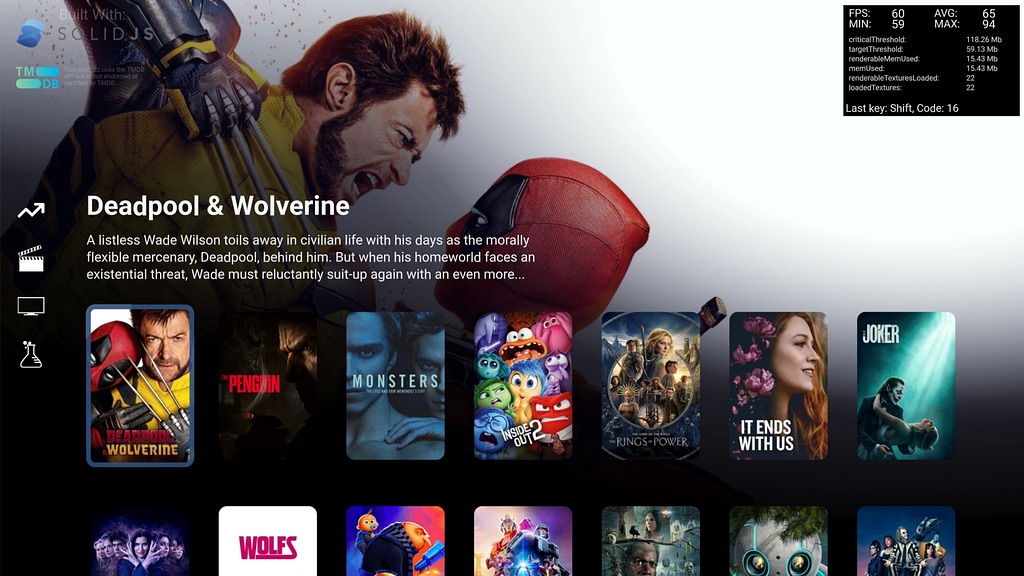
This will clone the starter template, which gets you up and running with a basic "Hello World" app in no time. If you want something more fleshed out, check out the demo app: github.com/solid-tv/solid-demo-app.
Once inside the starter template, you'll notice a few key files:
- index.tsx: The entry point of your app. It contains the configuration for both the SolidTV renderer and the router.
- App.tsx: Your main app wrapper. It's like the outer shell for your app — think navigation bars, backgrounds, and global layouts.
You'll also see that we're using TypeScript by default (hence .ts and .tsx file
extensions). If you're using VS Code, you'll enjoy the sweet auto-completion for most of the code, making it
even easier to get going!
Configuring the Renderer
Let's take a peek inside index.tsx to see some of the SolidTV-specific configurations.
// Default font settings for all <text> nodes
Config.fontSettings.fontFamily = 'Roboto';
Config.fontSettings.color = 0xffffffff;

// Settings for SolidTV Renderer passed in for starting application
Config.rendererOptions = {
  numImageWorkers: 1,
  fontEngines: [SdfTextRenderer],
  renderEngine: WebGlCoreRenderer,
  inspector: Inspector,
  // Set the resolution based on window height
  deviceLogicalPixelRatio: window.innerHeight / 1080,
  devicePhysicalPixelRatio: 1,
  boundsMargin: 200,
};
Here, we're setting up a few important things:
- We're defaulting font settings for all
<text>nodes. - The
rendererOptionsallow us to pass options to the SolidTV renderer, including the number of image workers, font engines, and pixel ratios. boundsMarginis the preload margin around the viewport, in logical pixels. It defaults to200, which is usually what you want — it loads textures ahead of a node scrolling into view.
Routing with SolidJS Router
Routing in SolidTV is handled with the popular SolidJS Router. Why write your own? It's robust, fast, and flexible.
// Lazy load routes easily with lazy
const TextPage = lazy(() => import('./pages/Text'));

// Create the renderer and load fonts
const { render } = createRenderer();
await loadFonts(fonts);

// Render the app using the HashRouter from SolidRouter
render(() => (
  <HashRouter root={App}>
    <Route path="/" component={HelloWorld} preload={getHomeData} />
    <Route path="/text" component={TextPage} />
    <Route path="/*all" component={NotFound} />
  </HashRouter>
));
Lazy-loading routes? Oh yeah! This helps reduce the initial bundle size and lets your app boot up super fast. The cool thing about the router is the ability to preload data for routes before they fully load. By following the "render as you fetch" pattern, we can make API calls while a component is being rendered, giving us that super snappy feel.
If you need different sections of your app with varying layouts (say, some with a sidebar and some without), you can easily structure it like this:
render(() => (
  <HashRouter root={App}>
    <Route path="/main" component={LeftNav}>
      <Route path="/" component={HelloWorld} preload={getHomeData} />
      <Route path="/text" component={TextPage} />
    </Route>
    {/* These routes won't have left nav */}
    <Route path="/*all" component={NotFound} />
  </HashRouter>
));
Here, any route under /main will include a left-side navigation bar, but routes outside of that
won't. There is lots the router can do and I recommend you check out their official documentation.
Focus Management and Accessibility
In App.tsx, we start seeing the power of SolidJS and SolidTV's ecosystem working together. Take a
look at this:
const App = (props) => {
  useFocusManager({
    Announcer: ["a"],
    Menu: ["m"],
    Text: "t",
    Escape: ["Escape", 27],
    Backspace: ["Backspace", 8],
    Left: ["ArrowLeft", 37],
    Right: ["ArrowRight", 39],
    Up: ["ArrowUp", 38],
    Down: ["ArrowDown", 40],
    Enter: ["Enter", 13],
  });
  useMouse();
  const navigate = useNavigate();
  const announcer = useAnnouncer();
  announcer.debug = false;
  announcer.enabled = false;
  // ...
The useFocusManager is the go-to for handling key events, like those from remote controls or
keyboards. For instance, pressing "t" will trigger an onText callback. You can dive into all the
details on focus management in the SolidTV
docs.
useMouse adds support for remote controls like the LG Magic Mouse, while
useAnnouncer integrates accessibility features, like screen reader voice-out for focused elements.
All this out of the box.
There are also a ton of Solid Primitives available that will help you with localstorage, debouncing, and other common app problems.
The Power of JSX
SolidTV embraces JSX for templating, which makes the development process feel super natural and fluid. JSX is well supported in editors and has been widely adopted thanks to React. Why change a good thing…
return (
  <view
    ref={window.APP}
    onAnnouncer={() => (announcer.enabled = !announcer.enabled)}
    onLast={() => history.back()}
    onText={() => navigate('/text')}
    onMenu={() => navigate('/')}
  >
    <view color={0x071423ff} />
    {props.children}
  </view>
);
Here, our top level <view> is handling all sorts of actions, like toggling the announcer or
navigating between routes. It's also a great example of how key events naturally bubble up through the DOM,
with parent components catching unhandled events from their children. This is our main App wrapper, and
props.children is filled with a Page from the router.
Page Components
Pages in SolidTV are nothing more than components themselves — simple functions that take in props. You can import any components you need and simply return them as part of your page. No need to register pages in any special way; it's all just components under the hood.
const HelloWorld = (props) => {
  return <text>Hello World</text>;
};

export default HelloWorld;
See how simple that is? The HelloWorld page is just a function that receives props
(an object with key-value pairs) to pass around. There's no need to define what those props are ahead of time;
just treat them like a dynamic object. And the best part? There's no performance overhead for calling these
functions. You can create as many components as you want and use them freely without worrying about extra
resource consumption. SolidJS's reactivity engine ensures everything is blazing fast.
Core Elements: <view> and <text>
There are two key intrinsic elements that you'll rely on when building apps in SolidTV:
<view> and <text>. These correspond to the core SolidTV renderer
primitives (everything's a node or text in the renderer) and require no imports. Let's build a simple
button:
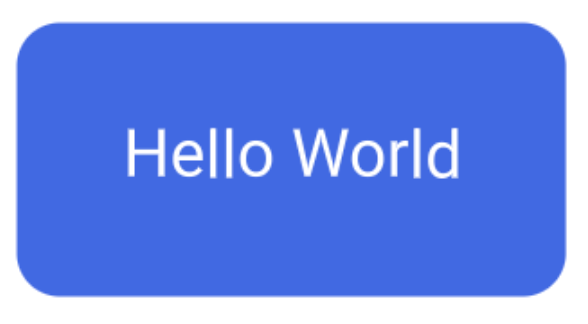
<view width={300} height={150} color="#4169e1" borderRadius={24}>
  <text textAlign="center" contain="both" lineHeight={150} width={300}>
    Hello World
  </text>
</view>
Each attribute gets passed straight through to the SolidTV renderer. And remember, since SolidTV is rendering
to a canvas, every element is positioned like position: absolute would be in HTML/CSS, giving you
precise control over layout. Everything has an x and a y position which default to
0,0 if not present. We've made a simple button:
Reusable Components: A Button
Reusability is one of the things that makes frontend frameworks so much fun. Let's make our button component reusable.
export function Button(props) {
  return (
    <view {...props} width={300} height={150} color="#4169e1" borderRadius={24}>
      <text textAlign="center" contain="both" lineHeight={150} width={300}>
        {props.children}
      </text>
    </view>
  );
}

// We can add multiple buttons now!
<Button>Hello World</Button> <Button x={350}>SolidJS</Button>
Now we have a simple button component that accepts props, making it easy to customize and reuse throughout our
app. Yup, it's just a function returning JSX. The same as pages. Also, we can {...props} to take
arbitrary values and apply them to the container. But what if we wanted different colors or widths?
Adding Styles for Flexibility
We can improve our button's flexibility by introducing a style object. This also has the benefit of keeping our styles separate from the UI, similar to how CSS works with HTML. We could import our styles from another file or leave them inline — choice is yours.
const buttonStyle = {
  width: 300,
  height: 150,
  color: '#4169e1',
  borderRadius: 24,
};

const textStyle = {
  textAlign: 'center',
  contain: 'both',
  fontSize: 36,
  lineHeight: 150,
  width: 300,
};

export function Button(props) {
  return (
    <view {...props} style={buttonStyle}>
      <text style={textStyle}>{props.children}</text>
    </view>
  );
}
This allows us to create more flexible buttons by applying default styles that can be overridden with props. We can also reuse styles following your standard object spread giving us a ton of flexibility rather than writing the same styles over and over again.
const defaultHeader = {
  fontSize: 32,
  fontWeight: 600,
};

const largeHeader = {
  ...defaultHeader,
  fontSize: 48,
};
One problem we have now is all the buttons are a set size… let's fix that.

Layout with Flex
Flex is a fundamental tool for building layouts. By using the flex implementation in SolidTV, we can create layouts that are responsive and easy to manage. Let's make a button that resizes based on the size of its text:
const buttonStyle = {
  display: 'flex',
  height: 150,
  color: '#4169e1',
  borderRadius: 24,
};

const textStyle = {
  fontSize: 36,
  lineHeight: 150,
  marginLeft: 40,
  marginRight: 40,
};

export function Button(props) {
  return (
    <view {...props} style={buttonStyle}>
      <text style={textStyle}>{props.children}</text>
    </view>
  );
}
With display: flex, it's easy to create dynamic layouts where content automatically adjusts based
on the size of the text or other items (and using margin for a bit of padding).
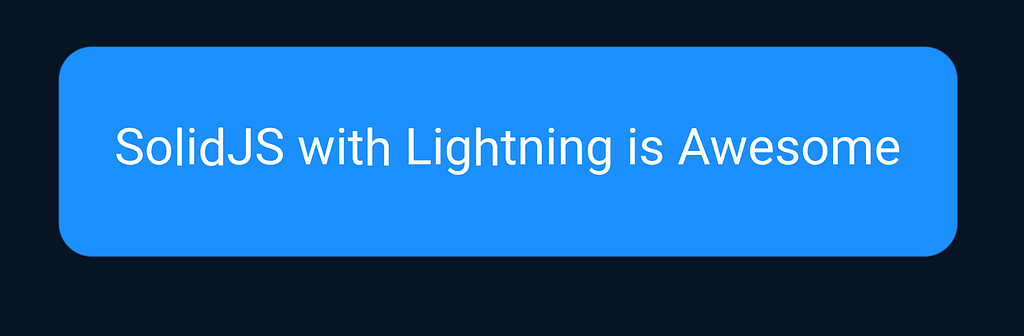
This is especially important with dynamically loaded content or switching user languages or putting images in between text. Check out this example:
const SublineContainer = {
  width: 900,
  height: 36,
  gap: 6,
  display: "flex",
  flexDirection: "row",
  justifyContent: "flexStart",
}

<view style={SublineContainer}>
  <text style={Subline}>Subline Text</text>
  <view width={28} height={28} src={'/assets/rt-popcorn.png'} />
  <text style={Subline}>More Text</text>
</view>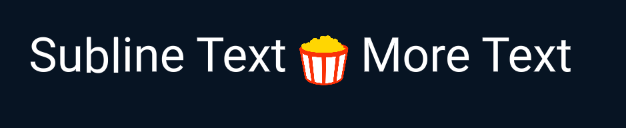
Pretty powerful stuff. Could you imagine doing this without flex? Using callbacks and resizing things and moving their X positions to make things work? What if you had to support alternative languages?

With flex, everything just lays out how you'd expect.
SolidJS Signals: Reactivity Made Simple
One of the killer features of SolidJS is its fine-grained reactivity system, which lets you manage state effortlessly.
import { createSignal } from 'solid-js';
import { Button } from '../components/button';

const HelloWorld = () => {
  const [isFavorite, setIsFavorite] = createSignal(false);

  return (
    <Button onEnter={() => setIsFavorite((p) => !p)} autofocus x={50} y={50}>
      {isFavorite() ? 'Unfavorite' : 'Favorite'}
    </Button>
  );
};

export default HelloWorld;

See that createSignal function? That's how we handle state changes. Solid's reactivity is
incredibly efficient, only updating the parts of the DOM that need to change. Oh, and that "state" doesn't have
to be part of the component. It can be global or pulled in from a shared state.js file. You can
easily separate your app state from your UI, no tight coupling, no API calls being made in your UI layer (unless
you do that sort of thing).
Fancy Focus Effects
Want to add a little flair to your buttons? Let's throw in some transitions and focus styles.
export function Button(props) {
  const buttonStyle = {
    height: 150,
    color: '#4169e1',
    alpha: 0.8,
    scale: 1,
    borderRadius: 24,
    focus: {
      alpha: 1,
      scale: 1.1,
    },
    transition: { alpha: true, scale: true },
  };

  return (
    <view {...props} style={buttonStyle}>
      <text>{props.children}</text>
    </view>
  );
}

Now, when the button is focused, it'll smoothly scale up and increase in opacity — perfect for drawing attention to UI elements. Let's wrap this up bringing it all together:
Dynamic Content with <For>
Let's say you want to dynamically generate buttons based on a list of items. SolidJS provides the
<For> component to handle this easily.
import { For } from 'solid-js';
import { Row } from '@solidtv/solid/primitives';
import { Button } from '../components/button';

const HelloWorld = () => {
  const buttons = [
    {
      label: 'Favorite',
      action: () => console.log('Favorite clicked'),
      color: 0x1e90ffff,
    },
    {
      label: 'SolidJS',
      action: () => console.log('SolidJS clicked'),
      color: 0x4682b4ff,
    },
    {
      label: 'Lightning',
      action: () => console.log('Lightning clicked'),
      color: 0x556b2fff,
    },
    {
      label: 'Rocks',
      action: () => console.log('Rocks clicked'),
      color: 0xcd853fff,
    },
  ];

  return (
    <Row x={50} y={50} gap={50}>
      <For each={buttons}>
        {(button) => (
          <Button color={button.color} onEnter={button.action}>
            {button.label}
          </Button>
        )}
      </For>
    </Row>
  );
};

export default HelloWorld;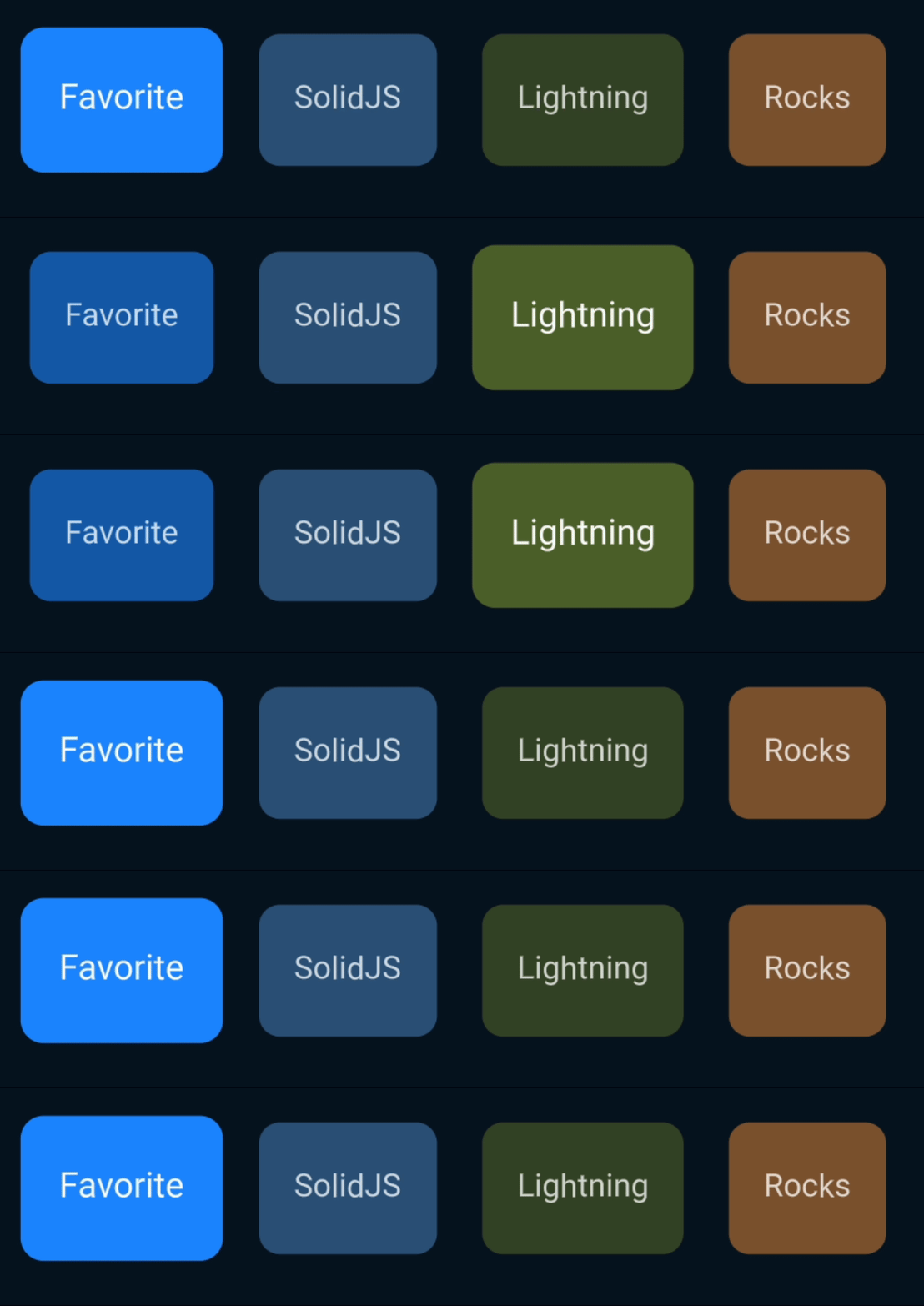
With SolidTV, generating dynamic content like this is a breeze. We're also using the Row
component from SolidTV's primitives. It's a simple flex container that moves focus between its children with
the Left and Right keys. The Row and Column
docs cover scrolling, selection and the rest of the options.
That's just scratching the surface of what you can do with SolidTV. To dive deeper, check out the resources below:
- Docs: solid-tv.github.io/solid
- GitHub Repository: github.com/solid-tv/solid
- Join the Community: SolidJS Discord (#SolidTV)
- Connect with me: Chris Lorenzo on LinkedIn
First published as "Lightning 3: The Basics of SolidJS" in JavaScript in Plain English on Medium.